 Trackhop
Playlist sync on a NAS or home server
A NAS or a small home server is on all the time: the best place for playlist syncs. Trackhop’s
Docker image runs on Synology, Unraid, TrueNAS SCALE, OpenMediaVault, a Raspberry Pi
4 or 5 and any machine with Docker, amd64 or arm64. It keeps your playlists identical between
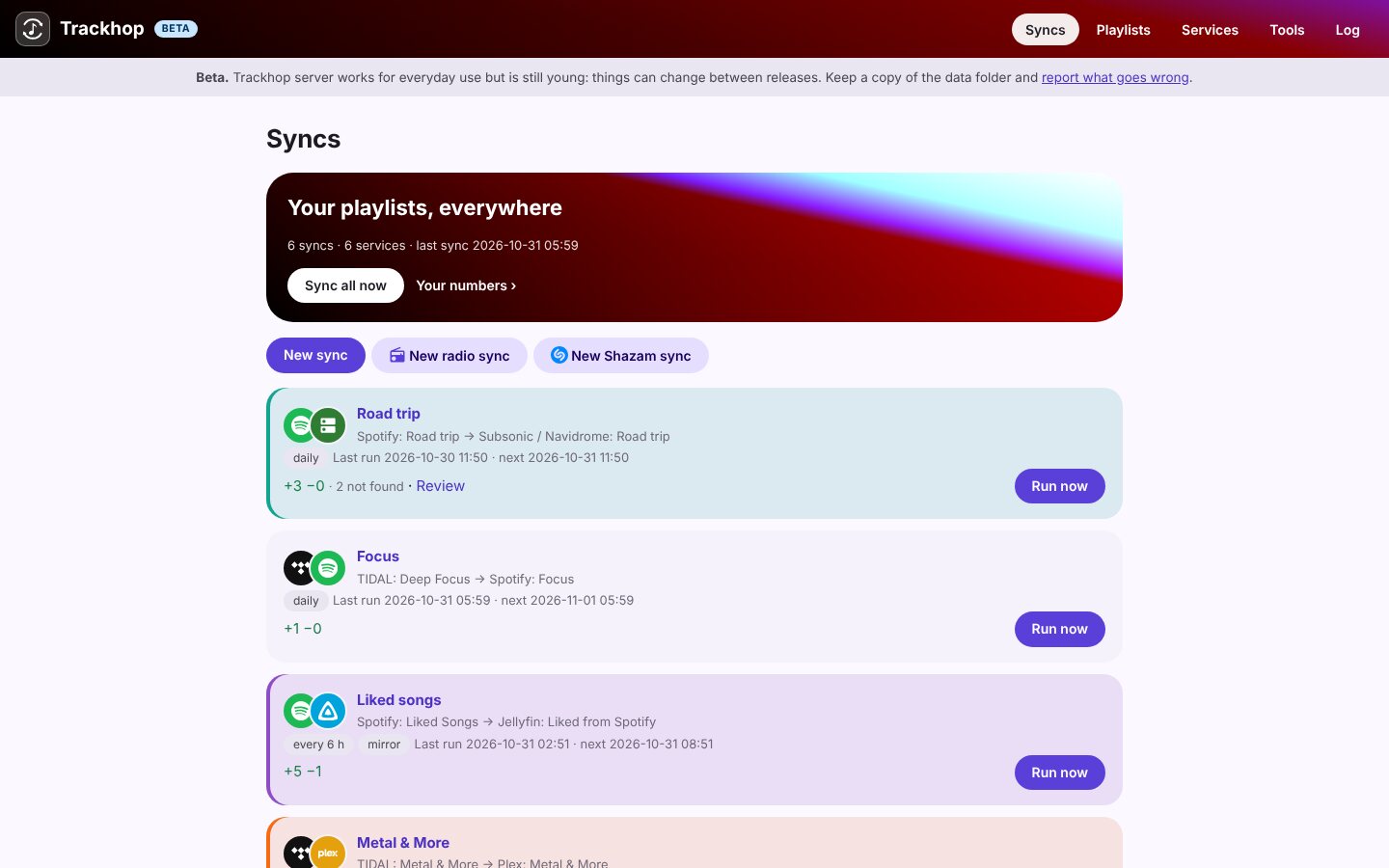
streaming services and your own Navidrome, Jellyfin or Plex, with a web page to manage it, also from
your phone.
The container
| Setting | Value |
|---|---|
| Image | ghcr.io/xlollx/trackhop:latest (also xlollx/trackhop on Docker Hub) |
| Port | 8080 (the web page) |
| Volume | a folder of yours → /data (syncs, sign-ins, backups) |
| Environment | SONGPORT_PASSWORD (the page’s password), SONGPORT_URL (the address you open it at), optional SONGPORT_LOCALE (it, de…) |
With Docker Compose (Portainer stacks, Unraid’s Compose plugin, TrueNAS custom apps):
services:
  trackhop:
    image: ghcr.io/xlollx/trackhop:latest
    container_name: trackhop
    restart: unless-stopped
    ports:
      - "8080:8080"
    volumes:
      - ./trackhop-data:/data
    environment:
      SONGPORT_URL: http://<NAS-IP>:8080   # example: http://192.168.1.10:8080
      SONGPORT_PASSWORD: choose-one
Replace <NAS-IP> with your NAS’s own address on your network (on a Synology: Control Panel ›
Network › Network Interface), keeping the port. Sign-ins to the music
services come back to that address, so a wrong one makes them fail.
When the page asks for a user name and a password, any user name works: only the password counts,
the one in SONGPORT_PASSWORD.
For the whole household, add SONGPORT_MULTIUSER: "true": everyone signs in with their own name and
password and has their own services and syncs (how).
Per system
- Synology (DSM 7.2 and later): Container Manager › Project › Create, paste the Compose file above, choose a folder for the data.
- Unraid: Docker › Add Container: repository
ghcr.io/xlollx/trackhop, port 8080, a path/mnt/user/appdata/trackhop→/data, the variables above. Or the Compose plugin. - TrueNAS SCALE: Apps › Discover Apps › Custom App, the same image, port, storage and variables.
- Raspberry Pi: 64-bit Raspberry Pi OS, install Docker, then the
docker runcommand of the Docker guide.
Then
- Open
http://<nas>:8080and sign in with your password. - Services: add Navidrome, Jellyfin or Plex (address and login) and your streaming service.
- New sync: source, target, how often. Done: it runs by itself from now on.
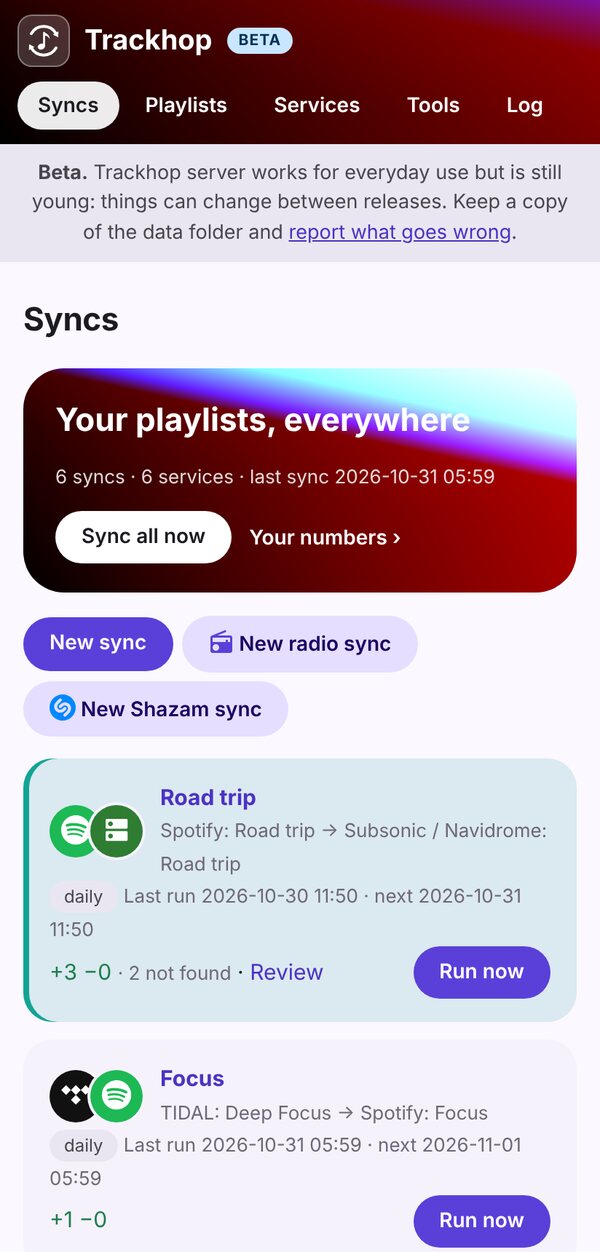
- On your phone, add the page to the home screen: it opens like an app.
To update: pull the new image and recreate the container; the data stays in its folder. Everything else (each service, the API, backups, radio syncs): the Docker guide.